
Consistent Multi Image Edits with Krea 2 in ComfyUI
Consistent Multi Image Edits with Krea 2 in ComfyUI
1. Introduction
Welcome to the tutorial on Krea 2 Multi Image Edit in ComfyUI! This powerful tool is designed specifically for identity-preserving image editing, allowing users to make consistent and high-quality edits to their images. Unlike traditional text-to-image generation, Krea 2 Multi Image Edit focuses on maintaining the identity of subjects while enabling a variety of editing capabilities. With the integration of the krea2_identity_edit_v1_2.safetensors LoRA, users can achieve remarkable consistency during their edits, making it an essential tool for anyone looking to enhance their image editing workflow.
Key Capabilities of Krea 2 Multi Image Edit:
- Identity Preservation: Ensure that the subject's identity remains intact throughout the editing process.
- Local Image Edits: Make targeted adjustments to specific areas of an image without affecting the entire composition.
- Object Replacement: Easily swap out objects in your images for a fresh look.
- Full Image Restyling: Transform the overall style of an image while keeping the subject's identity consistent.
- Multi-Image Editing: Edit multiple images simultaneously for cohesive results.
Identity Preservation: Ensure that the subject's identity remains intact throughout the editing process.
Local Image Edits: Make targeted adjustments to specific areas of an image without affecting the entire composition.
Object Replacement: Easily swap out objects in your images for a fresh look.
Full Image Restyling: Transform the overall style of an image while keeping the subject's identity consistent.
Multi-Image Editing: Edit multiple images simultaneously for cohesive results.
Before getting started, make sure to use these editing tools responsibly. With that in mind, let's go through the requirements and set up Krea 2 Multi Image Edit in ComfyUI.
Uncensored Image Edit in The Hub
Edit your images quickly with AI-powered tools inside The Hub.
2. Requirements & Setup for Krea 2 Multi Image Edit (ComfyUI)
Before you can start using Krea 2 Multi Image Edit in ComfyUI, there are several requirements and setup steps you need to follow. This ensures that your environment is properly configured for optimal performance and functionality.
You'll need ComfyUI running either locally or on a cloud GPU.
Local (Windows):\
👉 How to Install ComfyUI Locally on Windows
Cloud GPU (RunPod):\
👉 How to Run ComfyUI on RunPod with Network Volume
Requirement 2: Update ComfyUI
Keeping ComfyUI up to date is important to ensure compatibility with the latest workflows and custom nodes. Choose the update method that matches your environment below.
Windows Portable Users:
Navigate to: ...\ComfyUI_windows_portable\update
Double click: update_comfyui.bat
RunPod / Linux Users:
1
2cd /workspace/ComfyUI && git pull origin master && pip install -r requirements.txt && cd /workspace
1
2cd /workspace/ComfyUI && git pull origin master && pip install -r requirements.txt && cd /workspaceAlternatively, you can update ComfyUI directly through the Custom Node Manager.
Requirement 3: Install Required Custom Nodes
You will need to install specific custom node (Krea 2 Identity Edit) that are essential for Krea 2 Multi Image Edit.
If any required custom nodes are missing:
- Open Manager in ComfyUI
- Click Install Missing Custom Nodes
- Install everything shown
- Restart ComfyUI
Open Manager in ComfyUI
Click Install Missing Custom Nodes

Install everything shown
Restart ComfyUI
Requirement 4: Download Required Models
You will need to download several models to use with Krea 2 Multi Image Edit. Below is a table listing the required files, their download pages, and the folders where they should be placed:
| File Name | Download Page | Folder |
|---|---|---|
| krea2_turbo_fp8_scaled.safetensors | 🤗 HuggingFace | ..\ComfyUI\models\diffusion_models |
| qwen3vl_4b_fp8_scaled.safetensors | 🤗 HuggingFace | ..\ComfyUI\models\text_encoders |
| qwen_image_vae.safetensors | 🤗 HuggingFace | ..\ComfyUI\models\vae |
| krea2_identity_edit_v1_2.safetensors | 🤗 HuggingFace | ..\ComfyUI\models\loras |
💡 Notes: The Identity Edit LoRA is crucial for maintaining consistent identity during edits. You can stack it with other LoRAs if desired.
💡 Notes: The Identity Edit LoRA is crucial for maintaining consistent identity during edits. You can stack it with other LoRAs if desired.
Requirement 5: Verify Folder Structure
Finally, verify that your folder structure matches the following:
1📂 ComfyUI/
2├── 📂 models/
3│   ├── 📂 diffusion_models/
4│   │   └── krea2_turbo_fp8_scaled.safetensors
5│   ├── 📂 text_encoders/
6│   │   └── qwen3vl_4b_fp8_scaled.safetensors
7│   ├── 📂 vae/
8│   │   └── qwen_image_vae.safetensors
9│   ├── 📂 loras/
10│   │   └── krea2_identity_edit_v1_2.safetensors
1📂 ComfyUI/
2├── 📂 models/
3│ ├── 📂 diffusion_models/
4│ │ └── krea2_turbo_fp8_scaled.safetensors
5│ ├── 📂 text_encoders/
6│ │ └── qwen3vl_4b_fp8_scaled.safetensors
7│ ├── 📂 vae/
8│ │ └── qwen_image_vae.safetensors
9│ ├── 📂 loras/
10│ │ └── krea2_identity_edit_v1_2.safetensorsWith these requirements met, you are now ready to proceed to the next step!
3. Downloading and Loading the Krea 2 Multi Image Edit Workflow
Now that you have set up your environment, it’s time to download and load the Krea 2 Multi Image Edit workflow into ComfyUI. This process is straightforward and will prepare you for editing images effectively.
Step 1: Download Workflow
First, you need to download the Krea 2 Multi Image Edit workflow JSON file. This file contains all the necessary configurations and settings for the workflow.
👉 Download Krea 2 Turbo 12 step Workflow JSON
Step 2: Load Workflow
Once you have downloaded the workflow JSON file, open ComfyUI.
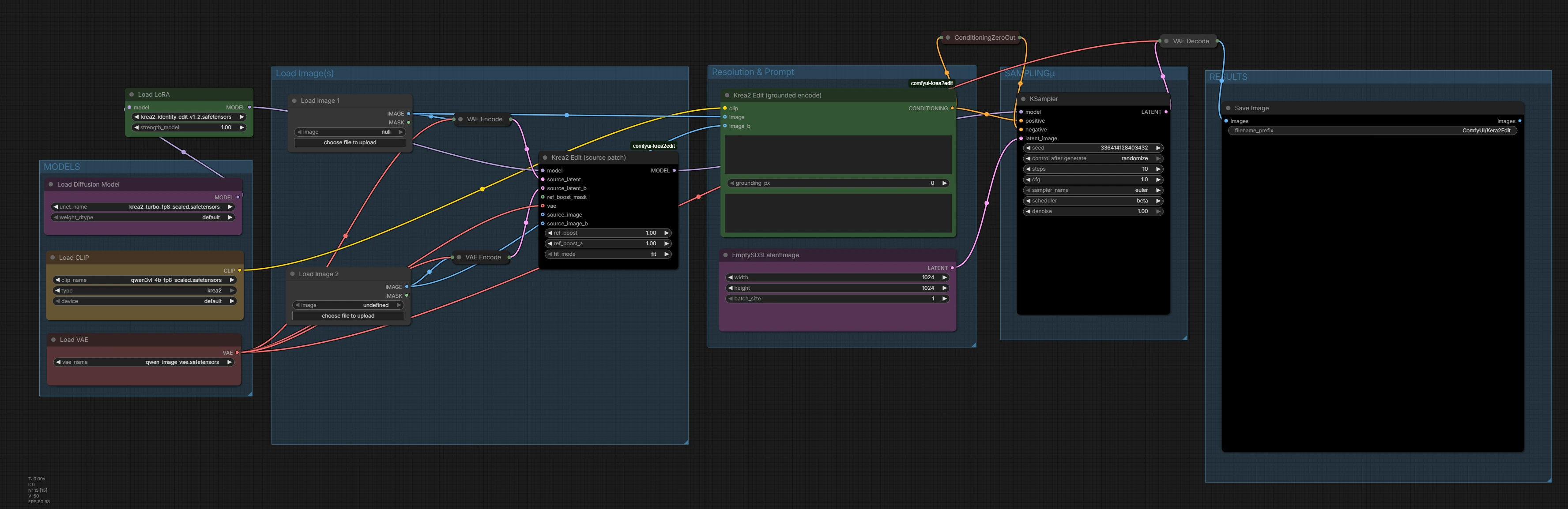
To load the workflow, simply drag and drop the JSON file into the ComfyUI interface. This action will automatically import the workflow settings and make them available for use.
Step 3: Verify Models
After loading the workflow, it’s essential to verify that all required models are correctly loaded. Check the following components:
- Diffusion Model: Ensure that the krea2_turbo_fp8_scaled model is loaded.
- Text Encoder: Verify that the qwen3vl_4b_fp8_scaled model is present.
- VAE: Confirm that the qwen_image_vae model is loaded.
- LoRA: krea2_identity_edit_v1_2 model is loaded.
Diffusion Model: Ensure that the krea2_turbo_fp8_scaled model is loaded.
Text Encoder: Verify that the qwen3vl_4b_fp8_scaled model is present.
VAE: Confirm that the qwen_image_vae model is loaded.
LoRA: krea2_identity_edit_v1_2 model is loaded.
Once you have verified that all models are correctly loaded, your workflow is now ready for editing! You can proceed to configure the workflow settings to tailor it to your specific editing needs.
Uncensored Image Edit in The Hub
Edit your images quickly with AI-powered tools inside The Hub.
4. Configuring the Workflow Settings
With the Krea 2 Multi Image Edit workflow loaded, the next step is to configure the workflow settings to optimize your editing experience. Proper configuration will ensure that you achieve the best results from your edits.
Overview of the Workflow
The Krea 2 Multi Image Edit workflow allows for a variety of editing modes, including identity-preserving edits, outfit changes, object additions or removals, background replacements, and full style transfers. It also supports two-image editing, which is particularly useful for complex compositions.
Parameter Settings
| Parameter | Setting | Description |
|---|---|---|
| Steps | 10 | Optimized for Krea 2 Turbo |
| CFG | 1.0 | Recommended setting |
| Sampler_name | euler | - |
| Scheduler | beta | - |
| Width | 1024 | Recommended resolution for balanced quality and performance |
| Height | 1024 | Recommended resolution for balanced quality and performance |
| Source Images | 1 or 2 | Supports single and dual-image editing. For single images, bypass the Load Image 2 and VAE Encode nodes with Ctrl + B. |
Supported Editing Modes
The workflow supports several editing modes:
- Identity-preserving edits: Maintain the subject's identity while making changes.
- Outfit changes: Easily swap clothing or accessories.
- Object additions/removals: Add or remove elements from the image.
- Background replacement: Change the background while keeping the subject intact.
- Full style transfer: Apply a new artistic style to the image.
- Replace subject while preserving composition: Change the subject without altering the overall layout.
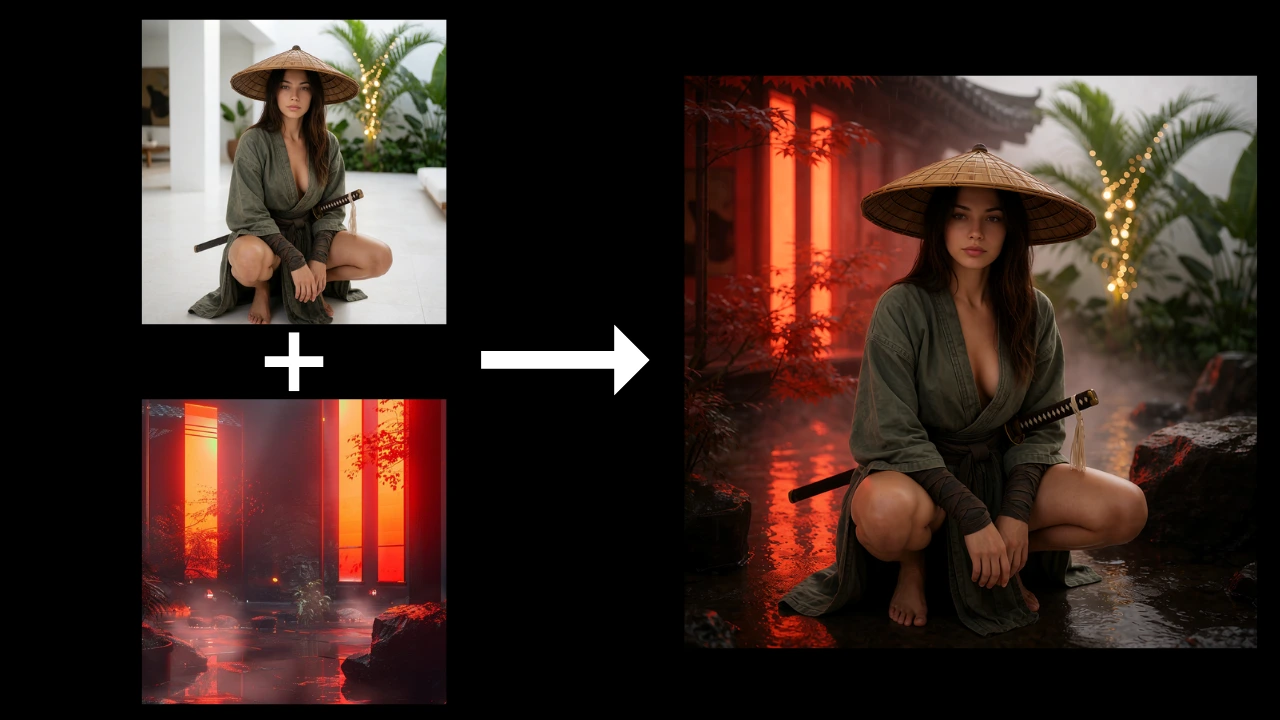
- Two-image editing: Use one image as a scene and another as a person.
Identity-preserving edits: Maintain the subject's identity while making changes.
Outfit changes: Easily swap clothing or accessories.
Object additions/removals: Add or remove elements from the image.
Background replacement: Change the background while keeping the subject intact.
Full style transfer: Apply a new artistic style to the image.
Replace subject while preserving composition: Change the subject without altering the overall layout.
Two-image editing: Use one image as a scene and another as a person.
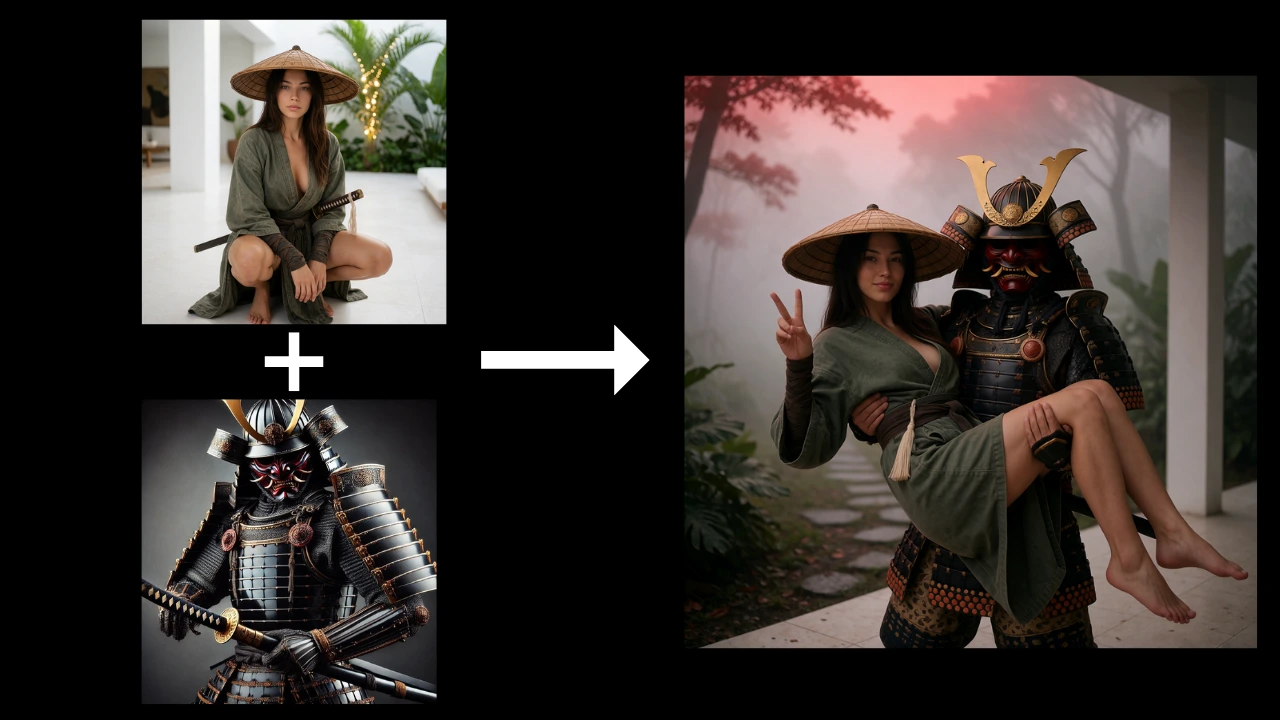
💡 Important: When using the two-image editing mode, always place the scene or object as Image 2 and the person as Image 1. This input order matches how the model was trained. Swapping the images can significantly reduce edit quality and lead to inconsistent or unexpected results.
💡 Important: When using the two-image editing mode, always place the scene or object as Image 2 and the person as Image 1. This input order matches how the model was trained. Swapping the images can significantly reduce edit quality and lead to inconsistent or unexpected results.
5. Example Image Edits with Krea 2 Multi Image Edit
Now that you have configured the workflow settings, let’s explore some example single-image and multi-image edits that showcase the capabilities of Krea 2 Image Edit. These examples illustrate how you can leverage the tool for a variety of editing tasks while maintaining identity consistency across one or more reference images.
Example Edits
- Two-Image Composition: Combine two images effectively, such as a scene and a person, to create a cohesive final product.
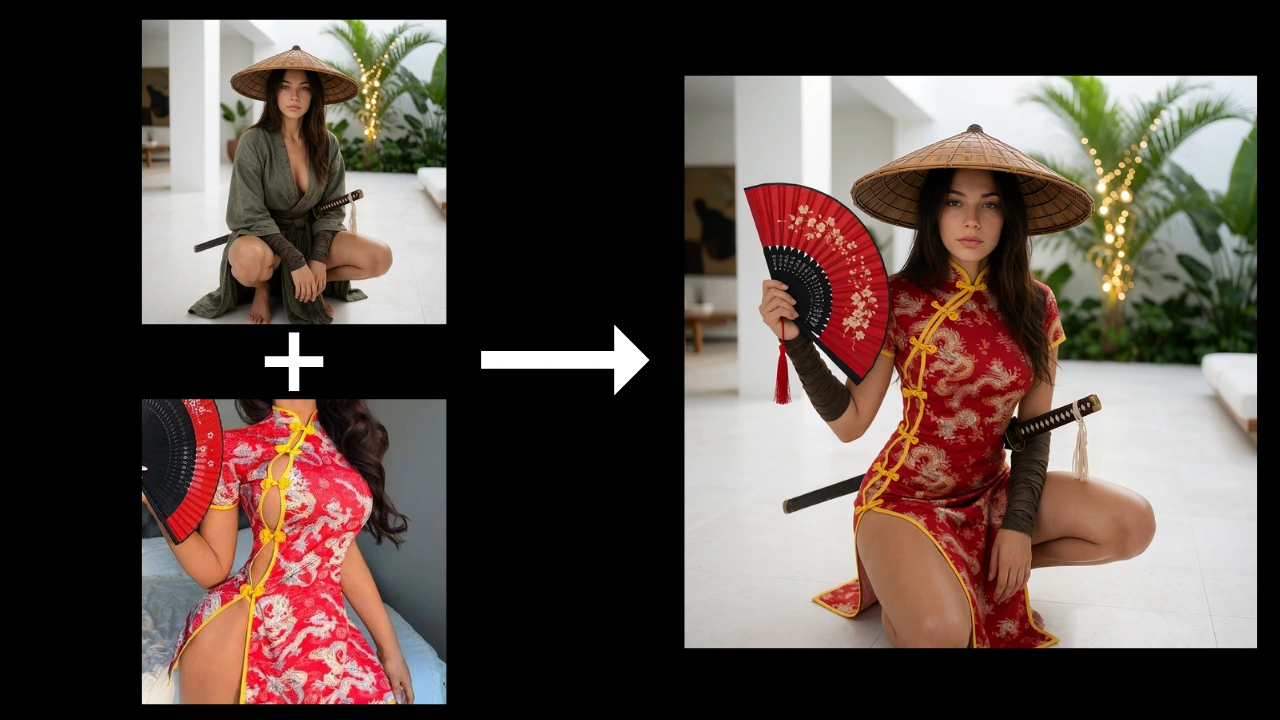
- Change Clothing: You can easily swap out the clothing of the subject, allowing for a fresh look without altering their identity.
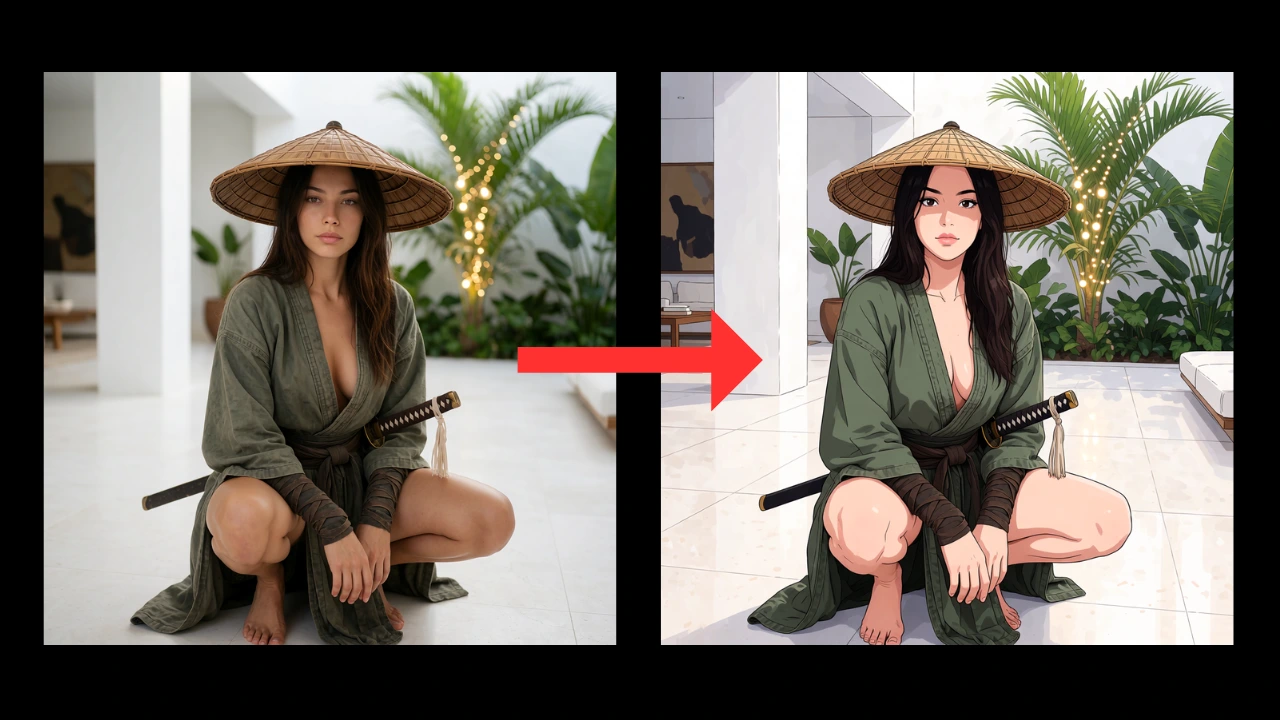
- Artistic Restyle: Transform the overall style of the image, applying artistic filters or styles while ensuring the subject remains recognizable.
- Multiple Characters: Transform images featuring multiple subjects by adjusting composition, style, or visual elements while preserving each character’s identity, appearance, and key details.
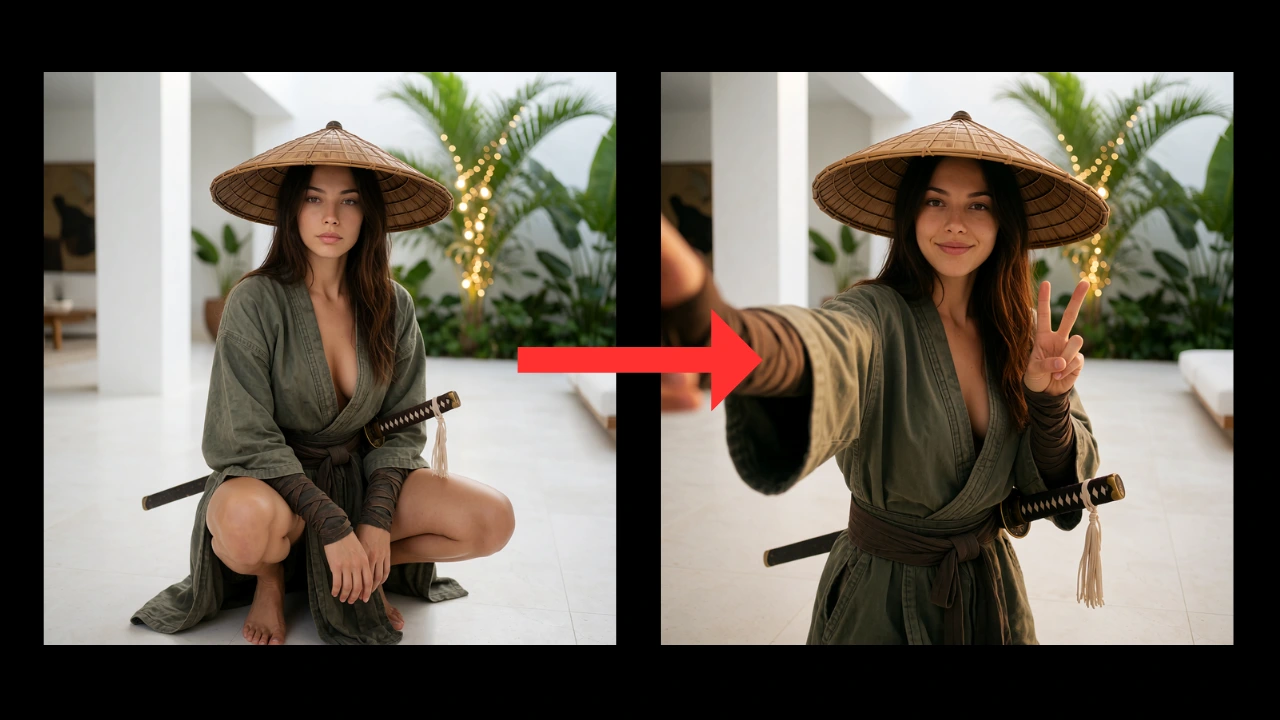
- Pose Changes: Modify the subject’s pose, gesture, or positioning while maintaining identity consistency, natural proportions, and the overall visual style of the image.
Two-Image Composition: Combine two images effectively, such as a scene and a person, to create a cohesive final product.
Change Clothing: You can easily swap out the clothing of the subject, allowing for a fresh look without altering their identity.
Artistic Restyle: Transform the overall style of the image, applying artistic filters or styles while ensuring the subject remains recognizable.
Multiple Characters: Transform images featuring multiple subjects by adjusting composition, style, or visual elements while preserving each character’s identity, appearance, and key details.
Pose Changes: Modify the subject’s pose, gesture, or positioning while maintaining identity consistency, natural proportions, and the overall visual style of the image.
Identity Consistency
One of the strongest features of Krea 2 Multi Image Edit is its ability to maintain identity consistency across edits. This is particularly important for projects that require a uniform look and feel, such as branding or character design. By utilizing the identity-preserving capabilities of the tool, you can ensure that your edits are not only visually appealing but also coherent and professional.
Uncensored Image Edit in The Hub
Edit your images quickly with AI-powered tools inside The Hub.
6. Conclusion
In conclusion, Krea 2 Multi Image Edit extends the capabilities of AI image editing in ComfyUI by providing powerful tools for identity-preserving edits and creative transformations. Throughout this tutorial, we explored the setup process, required models, and workflow configuration needed to get started. The main strengths of this tool are its excellent identity consistency, high-quality local edits, flexible object replacement, multi-image editing support, compatibility with additional LoRAs, and fast inference using the Krea 2 Turbo backbone. These features make it a strong choice for users who want more control over their image editing workflow while maintaining consistency and detail across generations. Whether you are refining existing images, creating new variations, or experimenting with advanced edits, Krea 2 Multi Image Edit provides a flexible and powerful solution inside ComfyUI.
Frequently Asked Questions
What is Krea 2 Multi Image Edit in ComfyUI?
What are the requirements for using Krea 2 Multi Image Edit?
How do I configure the workflow settings for Krea 2 Multi Image Edit?
Enjoyed this article? Share it with your network.